
Technology is wonderful. The tech companies continue to improve every device available with frequent updates and glitch fixes. But often, we don’t know how to take advantage of them. Many MacBook users don’t understand the abundance of cool things your laptop can do! Today, we’re going to show you a few of our favorites. Check out this list and give these features a whirl!

1. Talk, listen, and more with Siri!
Did you know that besides asking Siri questions about the weather or reminders, you can toggle system functions (i.e., WiFi or Bluetooth), launch apps, and pull up and open individual files? Just press Command +Space to access Siri on your MacBook OR click the Siri button on your Menu Bar. Or, if you have a newer Mac (like the 2018 MacBook Pro), you can simply give Siri a shout-out with a “Hey Siri!”.
2. Run Windows
You’re probably wondering why you would ever want or need to run Windows on your Mac. Believe it. Windows can add a few things that are more difficult for a Mac. For example, avid gamers love to play on a Windows platform. It offers more flexibility and can handle more intricate and space-intensive games. Plus, you can run Windows alongside macOS with a virtualization app like VirtualBox – or partition your hard drive and install Windows and use it on your hardware using Boot Camp Assistant (in the Utilities folder).
3. Sign PDFs in Mail
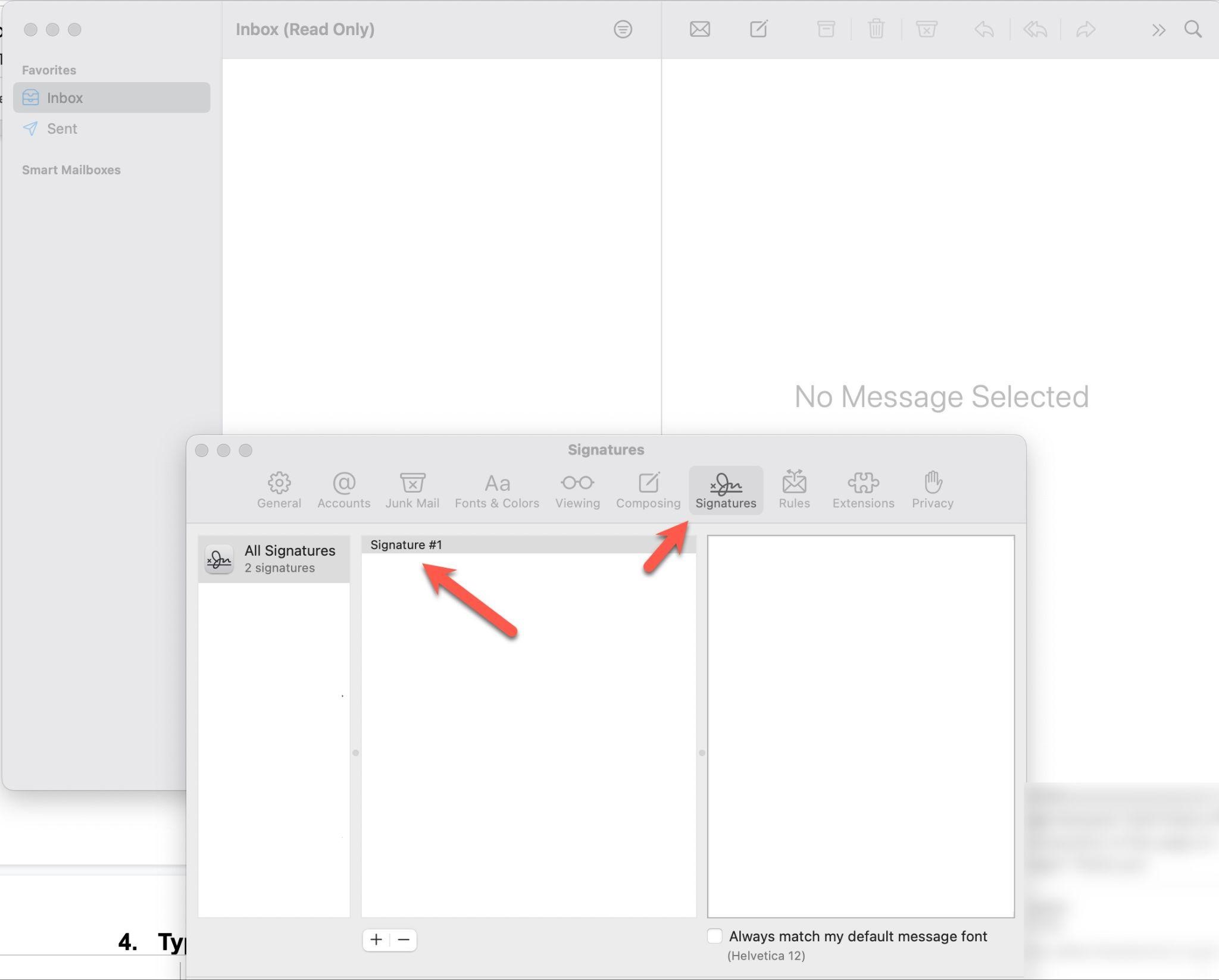
Nowadays, signing a document electronically is more effortless than printing it out, signing, scanning, and returning it to the sender. All you have to do is drag the PDF into the email you’re sending, hover over it, then click the top right button that will appear. You will see a list of Markup options, including the signature feature. You can add your signature in a couple of different ways. Hold a signed piece of paper to the webcam or draw it on your trackpad. If you have an iPad stylus, you can use that rather than your finger.
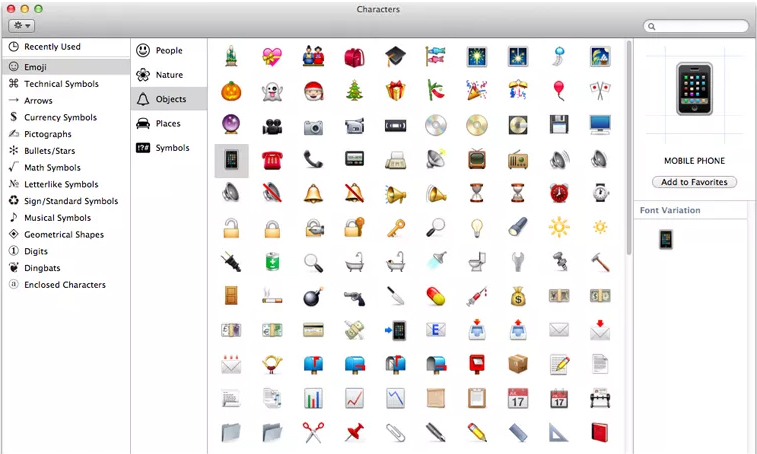
4. Type Exotic Characters
Since emojis have become so popular in texts, it is fun to be able to do some of the same characters in an email. To access this feature, click in the text where you want to place the character, then select Edit>Emoji & Symbols, and it will instantly appear in your document. You can also access them by pressing the Control-Command-Space bar)!
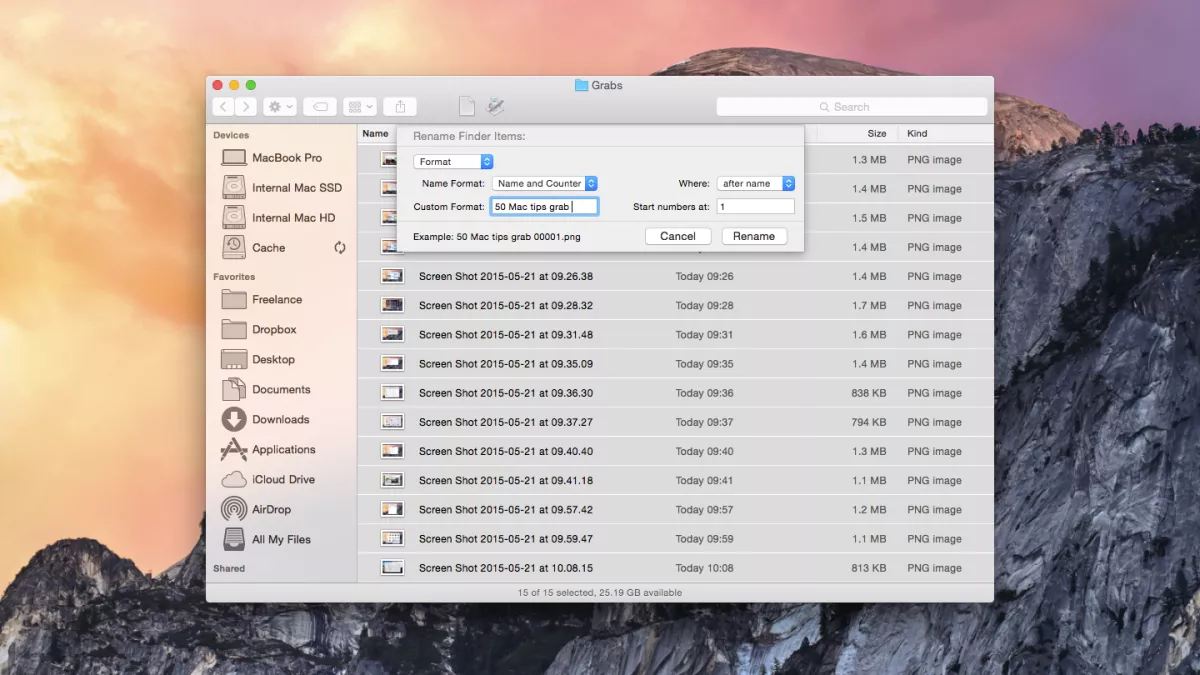
5. Batch Rename Files
This tip is a time-saver, particularly when you want to group files that need to be renamed for organization and efficiency purposes. Used to be that you’d have to use third-party software or rename each file individually. But now, you can select a group of files and rename them in bulk. Drag the cursor to select multiple files, shift-click (or Command-click) the files, go to File, and then Rename in the Menu. Use the dialog box to rename the files.
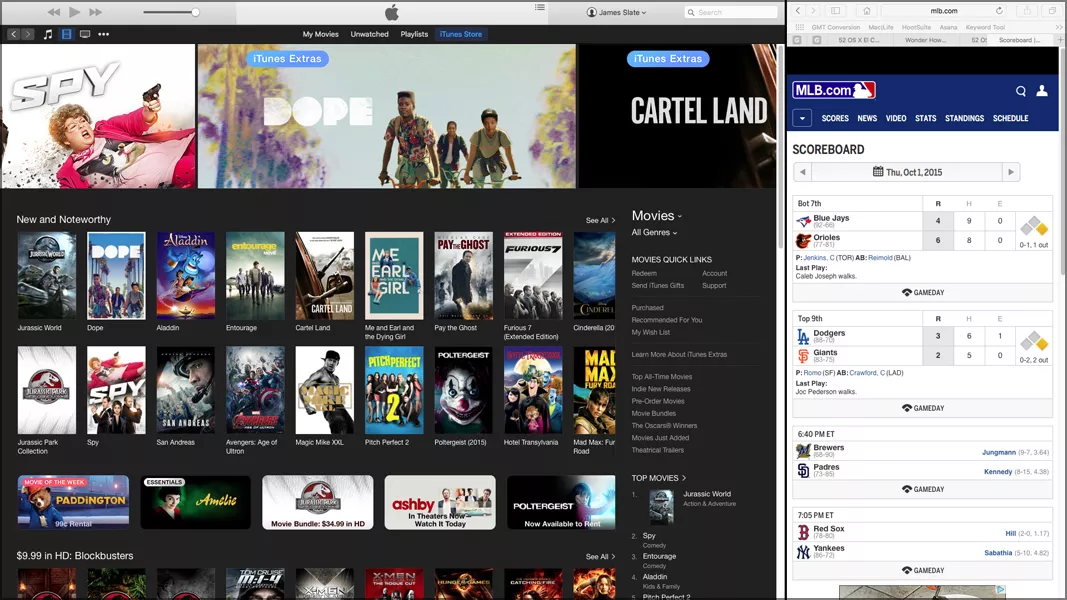
6. Split Screen
If you don’t have an additional external monitor when you need to multitask, this split screen feature can do the trick! If you’re on a macOS Mojave or older, simply hold down a left-click on an app’s green maximize button, then drag it to be positioned where you want it – the right or left side of the display.
If you have macOS Catalina installed, left-click and hold onto the green maximum button. A dropdown menu will allow you to enter the full screen, Tile window to the left or right of the screen. Either way, you will pick a second open window (or app) to snap to the opposite side. You can alter the size of each screen a bit to maximize or minimize either screen.
7. Find Wifi Passwords for your Other Devices
Macs are the best at remembering all of your passwords. You can recall them quickly by using the feature called Keychain. Your private details are always stored in Keychain Access, and it is most handy when quickly needing Wi-Fi connections, especially when you forget your Wi-Fi password.
It’s simple. Press Command+Spacebard, which will open the Spotlight search bar. Type in Keychain Access and click to open. Select Passwords and double-click on the network’s name to view the password. This step will open a new window that will provide that specific password.
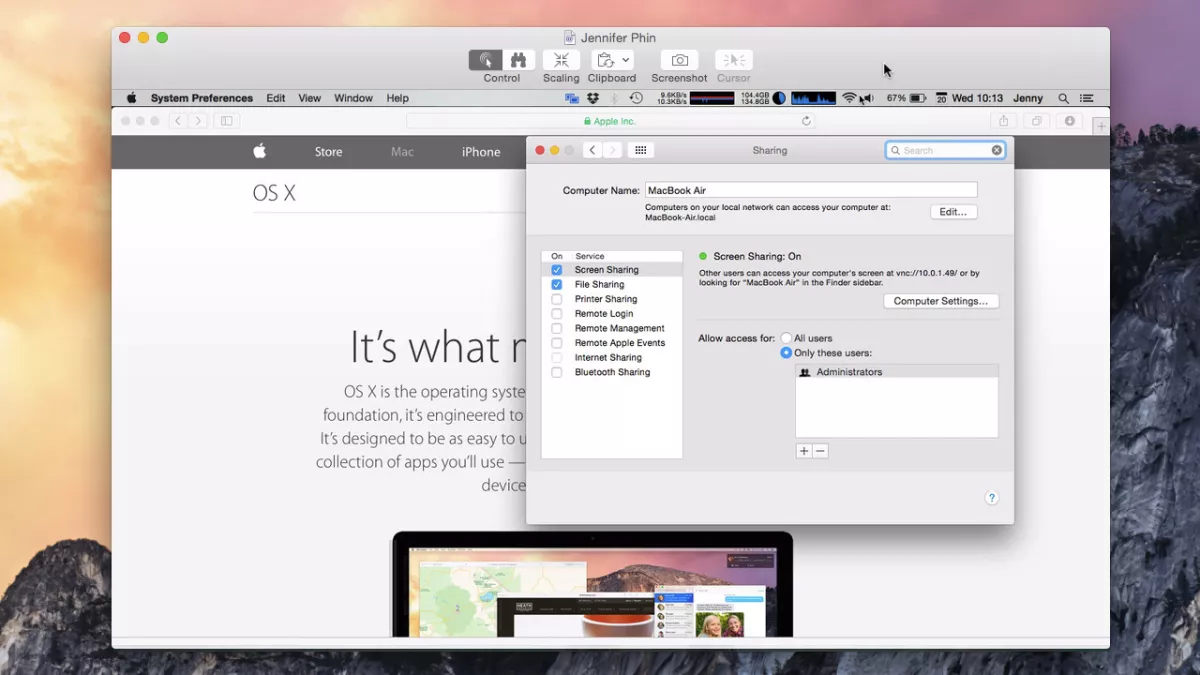
8. View Someone’s Screen Remotely
You may not need it often, but it is helpful to know how to do this, particularly if you need help or are providing support to a friend or relative. You can even control their Mac. Access Spotlight to local Screen Sharing. Enter the Apple ID of the person whose computer you are trying to access. Make sure they are looking in the iCloud pane of System Preferences and have Screen Sharing enabled in the Sharing pane.
9. Crop, Resize and Alter Images
Preview can perform tasks you might typically have to use third-party apps, like PhotoShop.Crop your image by drawing a selection around the area you want to keep by using the regular Rectangular Selection tool. Hit Command+K or select Crop from the Tools menu. You can also show the Edit Toolbar to make a more complex selection with the Instant Alpha tool or the Smart Lasso. Give it a try. It’s easier than it may sound.
10. Make Keyboard Shortcuts
Most Mac users do not realize that the shortcuts put in by the developers are not the only shortcuts available. For example, if you frequently use a menu option that does not have a shortcut, create one!
Go to System Preferences>Keyboard>App Shortcuts. Click the + button to add a new shortcut. Choose which app you want to apply it to from the dropdown list. Note: You need to know the name of the menu command to type it into the next box. It will be case-sensitive and must include all the characters in the command. Choose your unique key combination to activate the command, then click Add. Once learned, it will become an invaluable tool.
DV Warehouse – we’re here to help!
We hope you have learned a few new tips and tricks that will help simplify your computer time. We would love to share many more with you, but we don’t want to overwhelm you all at once. Stay tuned for Part 2 of Cool Things Your MacBook can do in our upcoming blog in September! Sign up here to be notified when our new blogs are posted. We at DV Warehouse want to help Mac users get the most from their Apple products!

Related Posts







Most Popular Models Today
-
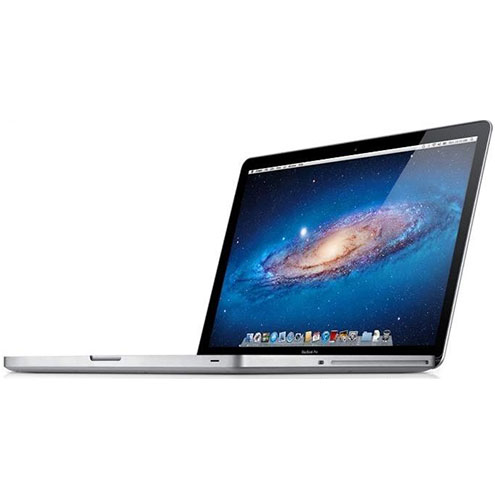
MacBook Pro 2.4Ghz Intel Core i5 4GB 500GB SuperDrive UNIBODY 13" MD313 Late 2011
$649.00 USD $329.00 USD -
MacBook Pro 2.66GHz Intel Core 2 Duo 4GB 250GB DVDR UNIBODY 13" MC375 Mid 2010
$799.00 USD $664.00 USD -
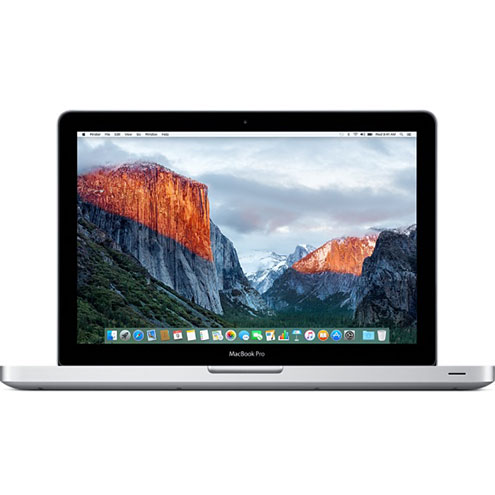
MacBook Pro 2.9GHz Intel Dual-Core i5 16GB 256GB Flash Storage 13" MF841 2015
$699.00 USD $459.00 USD