

Many purchase Apple computers because of the common knowledge that the devices have impenetrable macOS and hardware problems. They expect their Apple computers to be free of issues and glitches. Although they are not common, those unfortunate situations happen, and it is frustrating when they do.
If you’ve experienced data loss, battery drainage, or water damage issues, you have probably not known what to do.
Today, we will provide some of the best methods you can use to take care of these common issues yourself without wasting time or money. Before you know it, you’ll be up and running again.

1. MacBook Pro & MacBook Air Battery Drainage
One of the most common MacBook problems is battery drainage. If you have noticed that your battery is draining faster than usual, try this fix:
- Reset Power Management and restart your MacBook
If that doesn’t fix the battery, it means the battery is not charging correctly. You need to reset the System Management Controller (SMC). The SMC controls the most essential hardware processes, including battery recharging. To reset the SMC, follow these steps.
- Turn off your MacBook
- Press the power button to turn it back on
- Quickly hold the “Shift + Control + Option” buttons.
- Release all of the keys to boot up.
2. A Blank Screen Appears Upon Startup
While waiting for your Mac to boot up, you find the display shows only a blank or blue screen. If that persists, it generally means that the MacBook froze while loading a specific app or login function. So try this:
- Press the power button for several seconds to restart; if this doesn’t help, boot up in Safe mode. Once it starts, look for and remove the faulty items or login issues.
Note: If a gray screen shows up with an Apple logo in the center, it may be a more serious issue. Restart the computer and make sure you have downloaded the latest updates. You can always use the Disk Utility tool to locate and fix the issues causing the problems.

3. Your MacBook has Water Damage
Ugh. You spilled your water on your MacBook or dropped it in the sink and dread facing the likelihood of having to buy a new laptop. Take heart; there is a strong possibility you can save the life of your computer, assuming you didn’t dunk it in a swimming pool or bathtub for minutes. Follow these steps quickly:
- Immediately disconnect the power if it is plugged into an outlet.
- If the laptop is powered up, turn it off quickly to prevent long-term water damage. Hold the power button down until it turns off.
- Unplug all hardware and peripherals, like USB drives or speakers.
- Move the Mac to a safe, dry place. Grab a couple of towels or microfiber cloths and place one beneath the laptop and use the other to dry all of the external parts.
- Not all MacBooks have removable batteries, but if yours has one, remove it. Be careful and use something softer than a metal screwdriver, like a plastic toothpick, to loosen the screws.
- If the water spilled onto the keyboard, turn the laptop upside down to let it drain. Then reverse it and wipe everything down carefully.
- If you have a can of compressed air, you can slowly blow it in between and around the keys on the keyboard.
- Leave the water-damaged MacBook alone to dry for at least 48 hours.
4. Your Time Machine Failed to Backup
The built-in backup feature on your Mac is meant to systematically and automatically back up your data, including apps, music, photos, etc.
It is an excellent resource for locating deleted files. However, there are situations when files are deleted from the Time Machine’s external hard drive or, worse when the entire Time Machine Backup gets accidentally deleted. Here is what you can do:
- Restart the computer, and assuming it is up-to-date, this should not be difficult to fix.
- Check the AirPort base station and update if necessary. (Restart after the update.)
- Check your network connection and make sure the Mac is connected to the same network as your server and/or AirPort Time Capsule (if you use it).
- Check the backup to ensure it functions properly. Choose Verify Backups. The Time Machine will display an error message if it runs into a problem. Follow onscreen instructions.
5. macOS Performance Issues
If you have noticed performance issues while working on your Mac, it may be an issue with the macOS. The easiest way to tackle this issue is to install a new macOS version or reinstall an earlier version. Try these steps:
- Hold down the Command and R keys and restart the Mac.
- Release the keys when the Apple logo comes up on the monitor.
- Select Disk Utility in the macOS Utility window and click Continue.
- Select Startup Volume and click Unmount, then click Erase.
- Exit Disk Utility and select Reinstall macOS. Click continue.
- Follow the instructions on the screen to complete the reinstallation.
6. Your MacBook Screen has Cracked
Luckily it is not too common, but some owners of Apple’s MacBook Air and MacBook Pro models have reported screen cracks, particularly with the M1 models.
Unfortunately, there is no DIY fix to this problem. The most expeditious course of action is to take it to your most trusted computer repair store and have it replaced. Or you can purchase the screen and attempt to replace it, but unless you are thoroughly familiar with the process, it is not recommended.
A new screen can cost anywhere from $99 to $755, depending on the age and model of the MacBook. Once you discover the actual cost, you can determine whether it is worth having the computer repaired or not.
Often, the most cost-effective remedy will be to replace the laptop with a pre-owned or refurbished device that is newer than your current one.
We hope this little guide has provided a few solid step-by-step DIY fixes that will give instant relief to simple problems. Of course, more complex and challenging issues will require expert tech assistance.
DV Warehouse expert techs are always available to handle your difficult issues. Don’t hesitate to contact us! Call (800) 463-1322 or drop us an email.

Related Posts






Most Popular Models Today
-
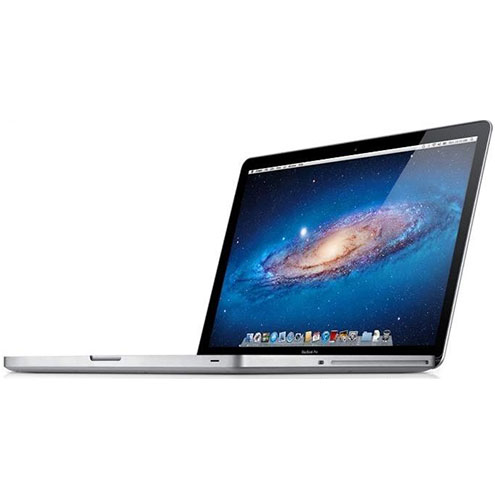
MacBook Pro 2.4Ghz Intel Core i5 4GB 500GB SuperDrive UNIBODY 13" MD313 Late 2011
$649.00 USD $329.00 USD -
MacBook Pro 2.66GHz Intel Core 2 Duo 4GB 250GB DVDR UNIBODY 13" MC375 Mid 2010
$799.00 USD $664.00 USD -
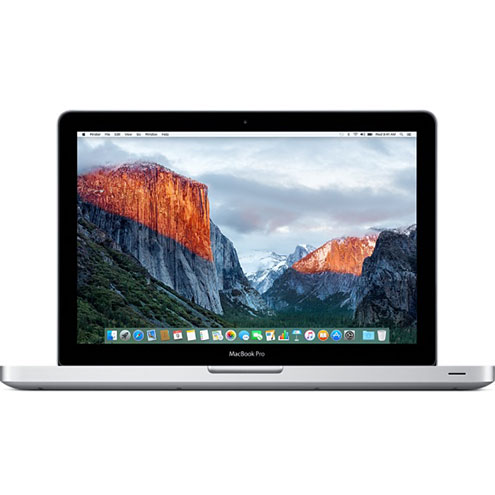
MacBook Pro 2.9GHz Intel Dual-Core i5 16GB 256GB Flash Storage 13" MF841 2015
$699.00 USD $459.00 USD